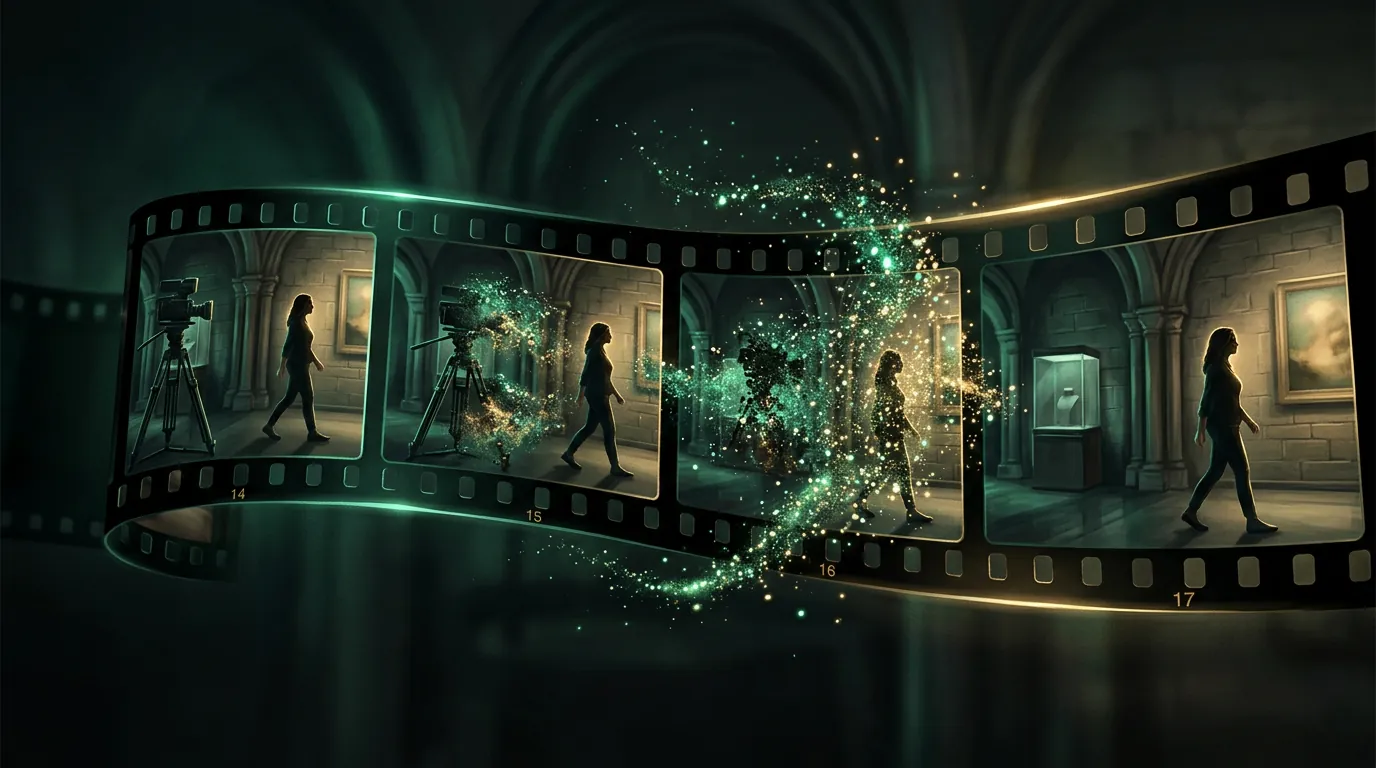
Remove an object from video
Removing a random passer-by, a logo, a wire or an object that ruins the frame is long routine on a photo (a separate chapter in the image guide). In video the task is harder: the object has to be removed not on one frame but on all of them at once, and so that the background behind it is believable in motion. Modern models can do this.
Why it's harder in video than on a photo
On a photo the network fills in the background behind the object once. In video the same background has to be built across dozens of frames — and consistently: so the "patch" doesn't shimmer, doesn't change texture and matches the camera movement. This is called video inpainting. So the result depends a lot on what's behind the object: a flat wall or water recover easily, a complex moving background is harder.
Upload a clip, mark the extra — see the frame without it. Video processing costs more than photo: the first operation is available after signing up and onboarding — which grants starter tokens.
To make it clean
- A simple background behind the object recovers better. If behind the extra object there's a flat surface or a repeating texture, the result is almost perfect.
- Minimal camera movement simplifies the task: with a strong dolly, it's harder for the model to keep the "patch" stable.
- The object shouldn't cover the main thing. If a face is behind the passer-by, the network will imagine it, and the likeness will suffer.
- Check the boundaries over time. Sometimes the "patch" barely shimmers on a couple of frames — visible only in motion, not on a freeze-frame.
Where you need it
- Cleaning up footage — remove random people, equipment, a mic in the frame.
- Removing watermarks and logos — with a caveat about rights (cleaning someone else's content to pass it off as your own isn't a great idea).
- Ads and production — remove unwanted props without reshooting.
What's next
That was the last chapter on working with finished video — next the book moves to application: how to make clips for specific tasks. Let's start with the most widespread — video for social media. And the sound and pictures for clips are made in the neighbouring guides: voicing and a voice for video, music and a background track and image generation.
In the Twelver chat you can upload a clip and remove the extra from it — in one conversation, with no separate apps. Starter tokens for video processing are granted after signing up and onboarding.
Try it yourself
Everything in this guide runs inside Twelver
One chat for text, images, video, music and voice — no separate services or subscriptions.
Open Twelver chat